Novaluxia PH Refunds, Returns and Order Help: Where to Start
An order that is late or not quite right has a route, and it starts in the order centre. This guide explains the eight order statuses, the published delivery policy, the step-by-step path for an order problem, and what to have ready before you raise it in the app.
You searched "novaluxia refund" or "novaluxia complaints" because something about an order needs attention. The useful news is that the route is published and it starts on a screen you already have: the order centre. This guide explains what each status means, what the delivery policy commits to, how to raise an order problem step by step, and what to have ready so the first message does the work.
Novaluxia customer service works best when the first contact carries the facts, and the app is built to hand them to you: an order number, a status, a delivery estimate and a receipt. Everything below is about collecting those four things and sending them through the channel that can act.
The eight order statuses and what each means#
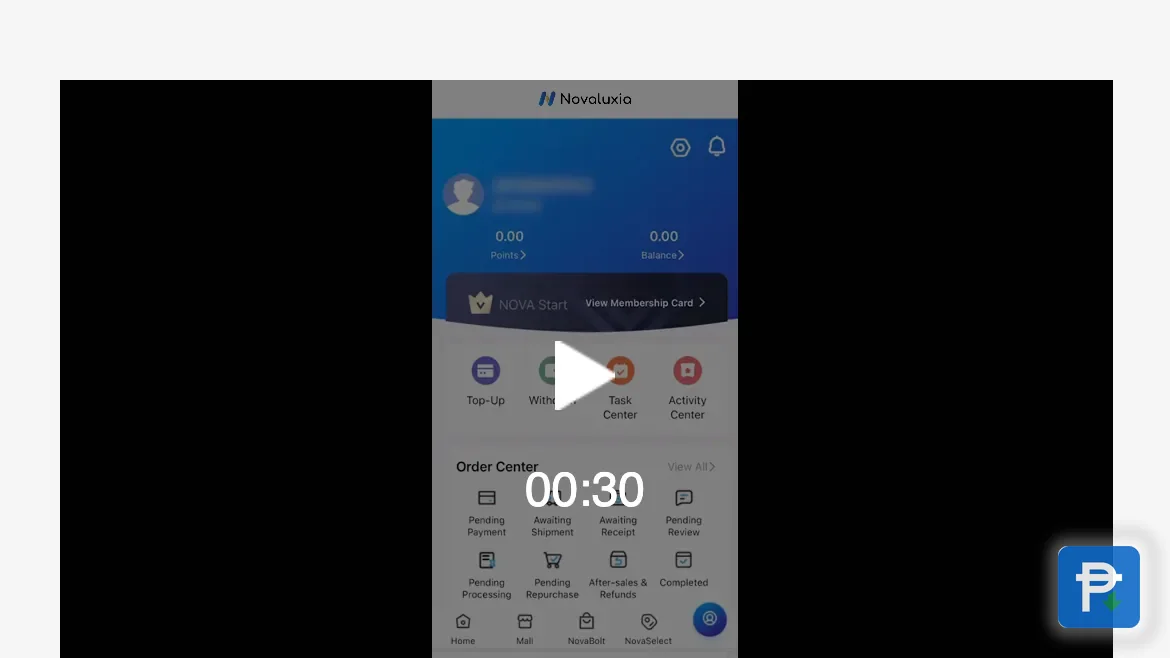
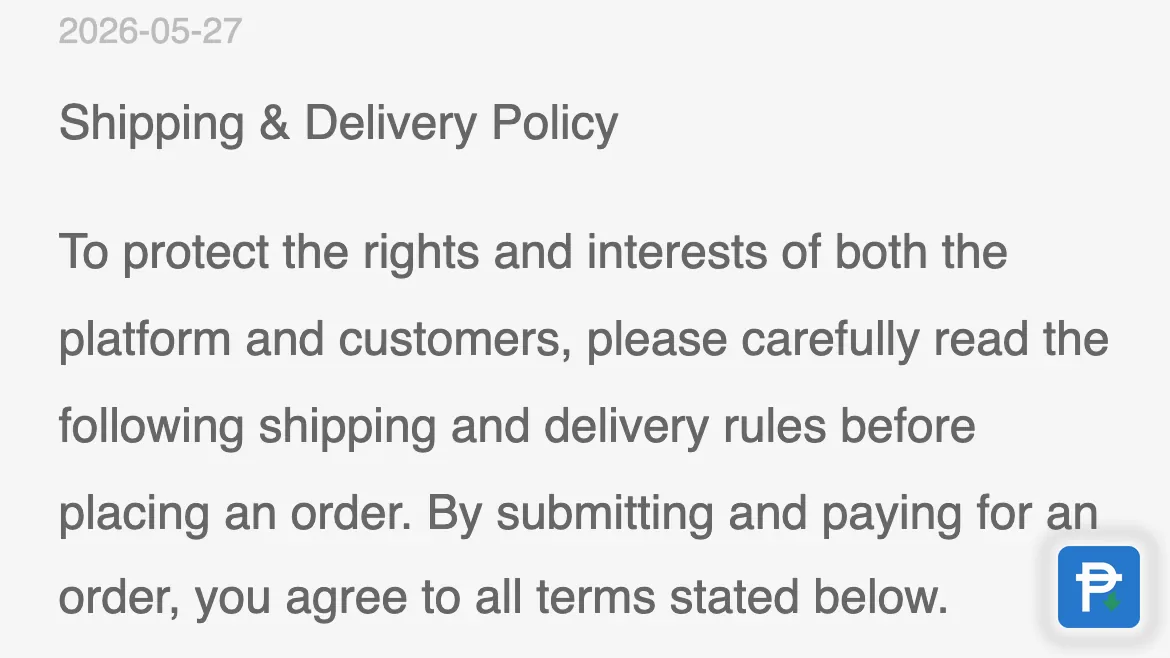
The order centre sorts every purchase into one of eight buckets. The names are plain, and each one describes a stage rather than a judgment:
| Status | What it tells you |
|---|---|
| Pending Payment | The order exists and is waiting for payment to complete |
| Awaiting Shipment | Payment is in and the parcel has not left the warehouse yet |
| Awaiting Receipt | The parcel is on its way or waiting for you to receive it |
| Pending Review | The order is being looked at before it moves to the next step |
| Pending Processing | The order is accepted and being prepared or picked |
| Pending Repurchase | A stage that points to buying the item again where the flow calls for it |
| After-sales & Refunds | The order is in the after-sales route, which is where order problems are handled |
| Completed | The order has finished its journey |
A status that does not move is usually not a problem. It means the next stage has not started yet, which is normal on any marketplace and more common on a group-buy order because a campaign result sits in front of the shipping flow. The order tracking guide pairs these eight names with the three dates that matter: the close of the campaign, the campaign result and the delivery estimate.
The published delivery policy#
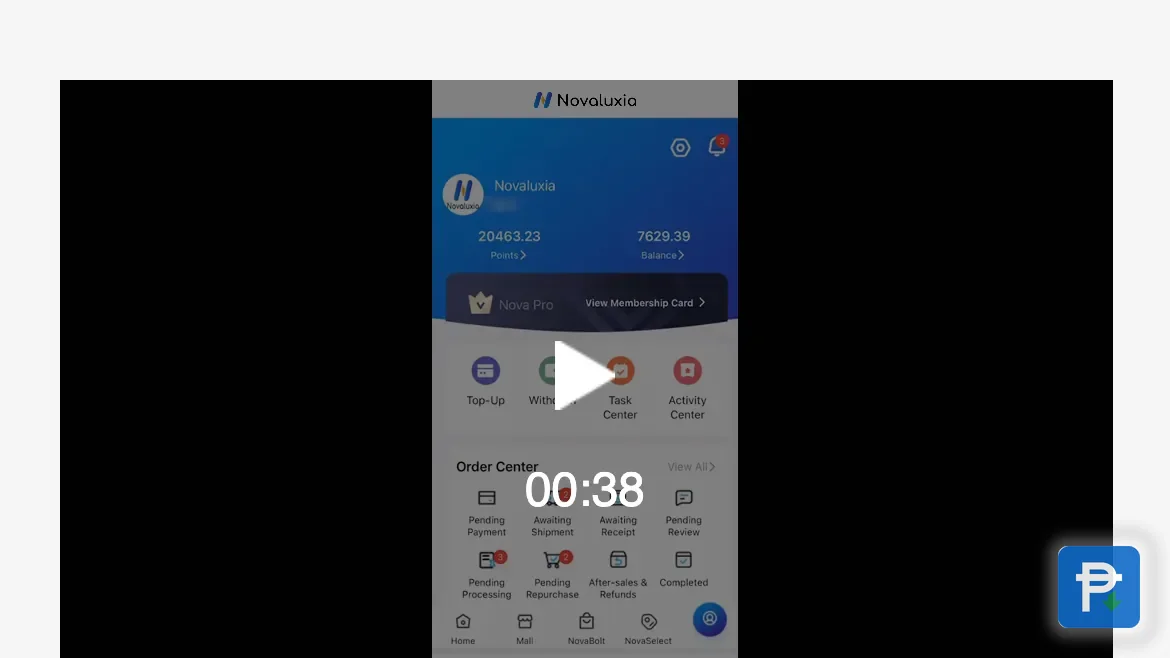
The platform keeps its delivery rules in the app's guide tab, under a Delivery Policy dated 27 May 2026. It is the document that explains how an order is meant to move, and it pairs with the order centre to tell you what is on schedule and what is not.
Delays do happen, and when they do the app says so. On 19 August 2026 the news feed carried a SHIP DELAY advisory: "Tropical Depression Neneng and the enhanced Southwest Monsoon may affect delivery times in some areas." That notice is the reason the advice on this page is to check the app's news feed before reporting: an advisory can explain a gap that otherwise looks like a stall. Advising is not the same as going missing, and a published notice is a sign the operation is watching its own weather.
The practical rule: wait until the delivery estimate shown in the app has passed and the status still has not changed, then report it. Reporting inside the estimate mostly adds a ticket that resolves itself; reporting after it, with the details attached, gives support something to act on.
The route for an order problem, step by step#
When an order genuinely needs help, this is the route, in order:
- Open the order centre and find the order. The status and the delivery estimate are both on the order card.
- Compare the status against the estimate. If the estimate has not passed, note the date and wait; if it has passed with no movement, move to the next step.
- Gather the record. The order number, the receipt in the app, the dates and a screenshot of the product page and checkout total.
- Write a one-line timeline. Ordered on X, estimate was Y, status still shows Z. That single line tells support where to look.
- Raise it in the in-app support channel. Send the timeline with the attachments and keep the ticket number.
- Follow up in the same channel. The ticket number is the reference, and in-app support can see the order it belongs to.
Six steps, none of which needs a phone call to a stranger or a conversation in a group chat. Everything the route needs already exists on your account, which is why this is the fastest path rather than the longest one.
What to prepare before you write#
The difference between a one-message resolution and a week of back-and-forth is usually the attachments. Have these ready:
- The order number, from the order card in the app.
- The receipt the app keeps for the payment.
- The dates: when the order was placed, the delivery estimate, and the date the status last changed.
- Screenshots of the product page and the checkout total, which record the campaign terms and the price you actually paid.
- A one-line timeline, as above.
- A photo, if the parcel arrived damaged or the contents were not right.
That is the same evidence kit that makes a campaign question easy to answer, and it is why the group buy walkthrough recommends taking two screenshots before paying. Keep it in your notes and the next issue costs a minute to prepare.
Customer service that can act#
The in-app support channel is the part of the platform built for this, and it is the one that can act on an order. Support can open the order, read the status history, see the payment record and take the next step, because every piece of the order lives on the same account. The local setup helps: the operation runs from a Makati regional headquarters with a Philippine support team and its own warehousing, so the order being traced is handled inside the country rather than passed to an overseas desk. The platform reports 105+ merchant partners, 3M+ group-buy sales and 99% positive feedback, and it was incubated by Innoventure Global Partners Ltd, so the team handling the ticket belongs to the same base the app describes. The Tips & Guides section collects the platform's own how-to material alongside it.
A note on tone, because it matters when you write: a clear, dated, factual message moves faster than a frustrated one. State the order number, the dates and what you expected, attach the screenshots, and let the record do the arguing. That is not just our advice; it is how the ticket system is designed to work.
One boundary worth stating plainly: keeping every message inside the platform's channel is what keeps the record intact. A resolution arranged in a private chat leaves nothing behind for either side to follow up on, which is why the in-app route is the one we recommend every time.
Paying outside the app: how the tricks work#
The order-help conversation is one place fake sellers like to insert themselves, so the safety note belongs here. The pattern: someone claims to be an agent or a "helper", offers to chase an order or to arrange a return for a fee, and asks for a GCash transfer, a bank deposit or an OTP to get it moving. Fake pages offer the same service with a form that collects your account details. No legitimate order problem is solved with a payment outside the app, and no support process needs a code handed to a stranger.
Keep the order inside the platform's own channel and the record stays whole: the order number, the status history and the payment all sit together, ready for support. If a payment has already gone elsewhere, the fake apps and pages guide has the first steps, starting with your bank or e-wallet support the same day.
An order that is handled in the app is an order that can be traced, corrected and finished. Use the order centre for the facts, the delivery policy for the schedule, and the in-app channel for anything that needs a human to push it.
Next#
- The platform in the background: what is Novaluxia?
- The full 2026 assessment: our Novaluxia review
- Every review and check we keep: the reviews hub
- How to send us a documented case: about this desk
What we checked, and when#
- The eight order statuses, the order centre layout, the Delivery Policy dated 27 May 2026 and the SHIP DELAY advisory dated 19 August 2026: read on the app's order, guide and news screens, 2026-09-18.
- The delivery timeline and the after-sales route as described here: from the app's published policy screens, checked 2026-09-18.
- The local Makati operation and the support setup: from the brand site and the app's own screens, 2026-09-18.
Policy wording and delivery estimates can change, so open the order centre and the app's news feed before acting on anything above. Our recommendation: keep the order number and the receipt saved, report after the estimate passes rather than before, and put every question through the in-app support channel so it lands with the team that can resolve it.
Quick answers
- Where do I start if something is wrong with an order?
- Open the order centre and find the order first. The status tells you which stage it has reached, and the delivery estimate tells you whether it is still on schedule. If the estimate has passed and nothing has moved, raise the issue in the in-app support channel with your order number and screenshots attached.
- What do the order statuses mean?
- The order centre files every order under eight names: Pending Payment, Awaiting Shipment, Awaiting Receipt, Pending Review, Pending Processing, Pending Repurchase, After-sales & Refunds, and Completed. Each one describes the stage an order has reached, and a quiet status usually means the next stage has not started yet.
- What should I prepare before contacting support?
- Your order number, the receipt from the app, the order and delivery dates, screenshots of the product page and the checkout total, and a one-line timeline of what happened. A request with those attached gives support everything needed to trace the order in one pass.
- How long should I wait before reporting a delay?
- Wait until the delivery estimate shown in the app has passed and the status still has not changed. Advisories such as the SHIP DELAY notice posted on 19 August 2026 explain many of those gaps, and they appear in the app's own news feed first.